How to set up the Exa MCP server: a hands-on guide
Connect Exa's hosted MCP server to Claude Code, Cursor, VS Code, Codex or ChatGPT, pick an auth mode, enable advanced tools, and debug it with curl.
To set up the Exa MCP server, point your MCP client at https://mcp.exa.ai/mcp. In Claude Code that is one command: claude mcp add --transport http exa https://mcp.exa.ai/mcp. No API key is needed to start. You get two read-only tools, web_search_exa and web_fetch_exa, under free rate limits. Sign in with OAuth (?login) or send an x-api-key header when you need higher limits or the agent_run research tool, and add ?tools= to opt into web_search_advanced_exa.
That is the whole happy path. The rest of this guide covers what the docs leave implicit: what the server says on the wire, which auth mode fits which setup, the ?tools= mistake that silently removes your search tool, how to keep keys out of config files, and how to stop web search from flooding your context window. Everything below was checked against the live server (exa-search-server 3.4.2) in October 2026.
What you get: the four Exa MCP tools#
Exa runs the server for you. Your client speaks Streamable HTTP to a single endpoint, and the server calls Exa's search index, content extraction and agent APIs on your behalf. You don't install or update anything, and one URL works in every client that supports remote MCP.
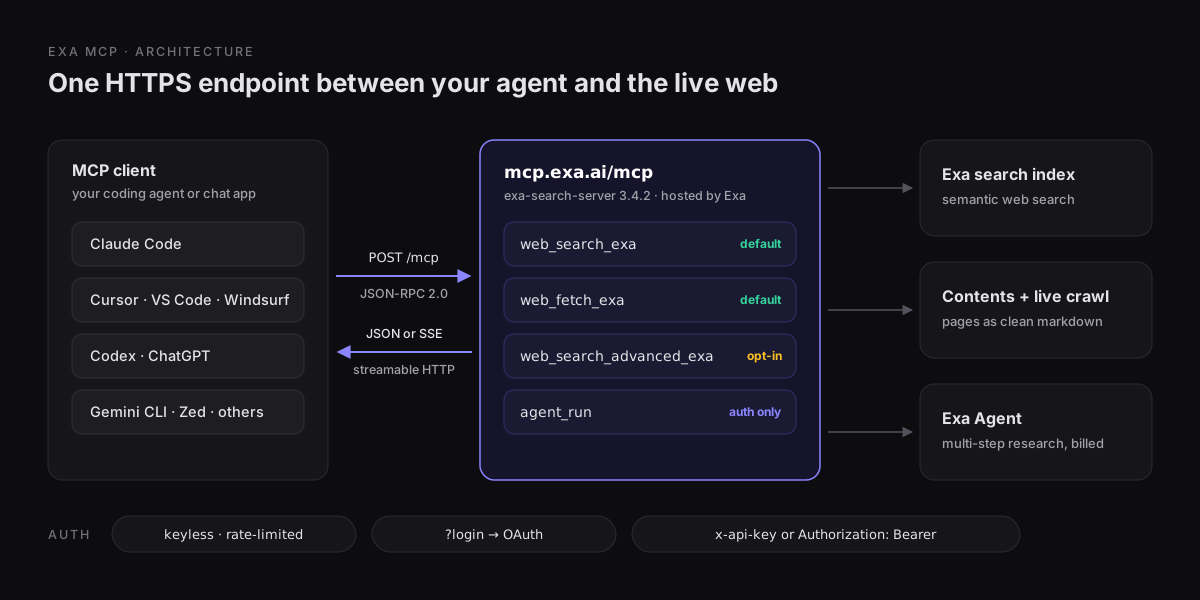
| Tool | Enabled | What it does | Key arguments |
|---|---|---|---|
web_search_exa | By default | Web search that returns clean text and highlights from the top results | query, objective (both required), numResults (default 10) |
web_fetch_exa | By default | Reads one or more known URLs as clean markdown | urls (array), maxCharacters (default 3000 per page) |
web_search_advanced_exa | Opt-in via ?tools= | Search with filters for domains, dates, text, categories, highlights, summaries and subpages | includeDomains, startPublishedDate, maxAgeHours, enableHighlights, subpages and about 20 more |
agent_run | With OAuth or API key only | Runs the Exa Agent for multi-step research, list-building and structured output | outputSchema, systemPrompt, effort, previousRunId |
The search and fetch tools are annotated readOnlyHint: true and openWorldHint: true. They can't change anything, but everything they return comes from the open web. Keep that second hint in mind; it comes up again in the security section.
Before you start: pick an auth mode#
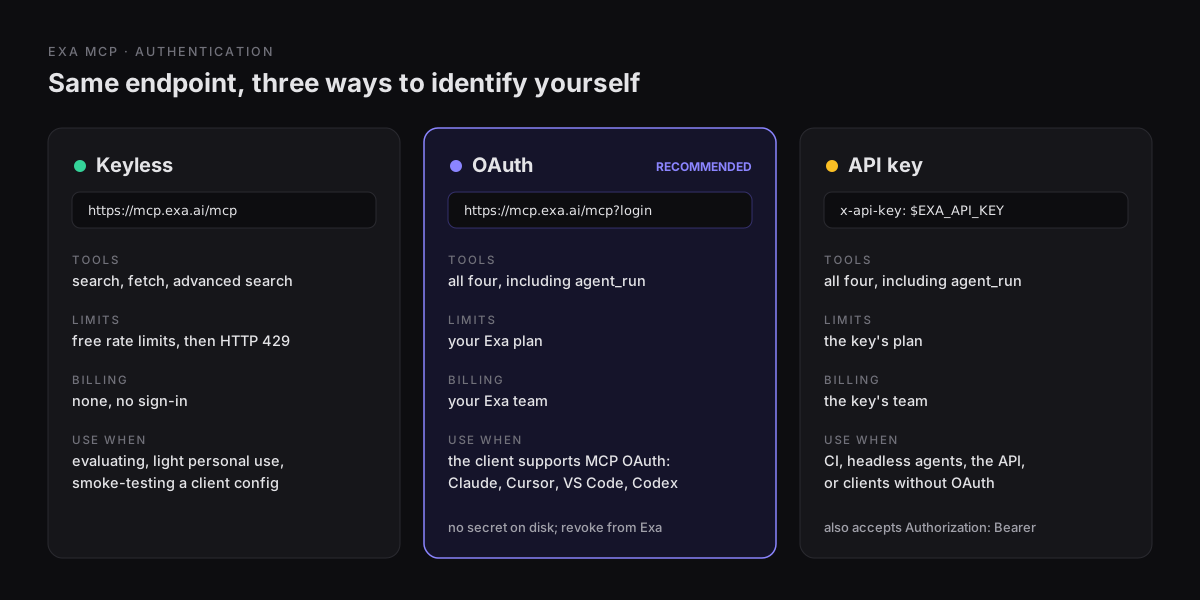
All three modes use the same endpoint. The difference is who you are to Exa, which decides your rate limits, who gets billed and whether agent_run is available.
My defaults:
- Keyless while you check that a client config works. It is the fastest way to rule out auth as the cause of a problem.
- OAuth for interactive use. Claude Code, Cursor, VS Code and Codex all support MCP OAuth, so no secret is stored on disk and you can revoke access from your Exa account.
- API key for CI, headless agents, the OpenAI API, and clients that don't support MCP OAuth. Create one at dashboard.exa.ai/api-keys. New accounts get free credits.
Step 1: Smoke-test the endpoint with curl#
Before you touch a client config, confirm you can reach the server and see what it returns. Thirty seconds of curl rules out network, proxy and TLS problems, and it shows you what your client actually does when it connects.
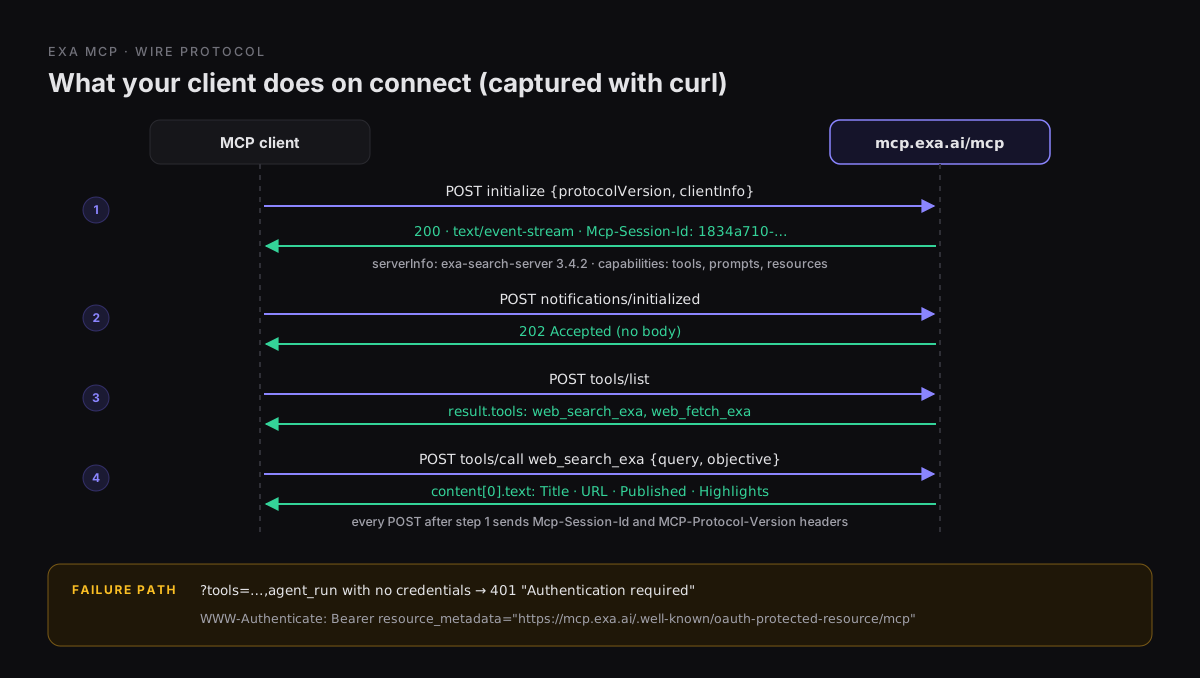
Open the session. Streamable HTTP requires the Accept header to list both JSON and SSE, and the server may answer in either format:
curl -sS -D headers.txt https://mcp.exa.ai/mcp \
  -H 'Content-Type: application/json' \
  -H 'Accept: application/json, text/event-stream' \
  -d '{"jsonrpc":"2.0","id":1,"method":"initialize","params":{"protocolVersion":"2025-06-18","capabilities":{},"clientInfo":{"name":"curl","version":"1.0"}}}'

export SID=$(awk -F': ' 'tolower($1)=="mcp-session-id"{print $2}' headers.txt | tr -d '\r')
You should get 200 with content-type: text/event-stream, an mcp-session-id header and a body like this:
event: message
data: {"result":{"protocolVersion":"2025-06-18","capabilities":{"tools":{"listChanged":true},...},"serverInfo":{"name":"exa-search-server","title":"Exa","version":"3.4.2",...}},"jsonrpc":"2.0","id":1}
Finish the handshake and list the tools:
H=(-H 'Content-Type: application/json' -H 'Accept: application/json, text/event-stream' \
   -H "Mcp-Session-Id: $SID" -H 'MCP-Protocol-Version: 2025-06-18')

curl -sS https://mcp.exa.ai/mcp "${H[@]}" -o /dev/null -w '%{http_code}\n' \
  -d '{"jsonrpc":"2.0","method":"notifications/initialized"}'    # 202

curl -sS https://mcp.exa.ai/mcp "${H[@]}" \
  -d '{"jsonrpc":"2.0","id":2,"method":"tools/list"}' | sed -n 's/^data: //p' | jq '.result.tools[].name'
Keyless, that prints "web_search_exa" and "web_fetch_exa". Now run a real search:
curl -sS https://mcp.exa.ai/mcp "${H[@]}" -d '{
  "jsonrpc":"2.0","id":3,"method":"tools/call",
  "params":{"name":"web_search_exa","arguments":{
    "query":"specification page for the Model Context Protocol streamable HTTP transport",
    "objective":"Find the official MCP spec page; modelcontextprotocol.io first",
    "numResults":2}}}' | sed -n 's/^data: //p' | jq -r '.result.content[0].text' | head -5
The result is plain text, already formatted for a model. Each result is a block of Title, URL, Published, Author and Highlights:
Title: Streamable HTTP - Model Context Protocol
URL: https://modelcontextprotocol.io/specification/2026-07-28/basic/transports/streamable-http
Published: 2026-07-28T00:00:00.000Z
Author: N/A
Highlights:
If all three calls work, the server is fine. Any later failure is in your client config or your auth.
Tip: Prefer a UI? The MCP Inspector does the same handshake: run
npx @modelcontextprotocol/inspector, choose Streamable HTTP, and paste the URL.
Step 2: Connect your client#
Every client below needs the same URL. What changes is the file location and, frustratingly, the name of the URL key.
Claude Code#
claude mcp add --transport http exa https://mcp.exa.ai/mcpThat adds the server to your local scope (this project, only you). Add --scope user to make it available in every project, or --scope project to write a .mcp.json that you can commit for your team. If you also want Exa's bundled search and exa-agent skills, install the official plugin instead:
claude plugin install exa@claude-plugins-officialTo sign in, use https://mcp.exa.ai/mcp?login as the URL, then run /mcp in a session, select exa and authenticate in the browser.
Cursor#
Install from the Cursor marketplace, or add this to ~/.cursor/mcp.json (global) or .cursor/mcp.json (per project):
{
  "mcpServers": {
    "exa": {
      "url": "https://mcp.exa.ai/mcp"
    }
  }
}
VS Code#
VS Code uses servers, not mcpServers, and needs an explicit type. In .vscode/mcp.json:
{
  "servers": {
    "exa": {
      "type": "http",
      "url": "https://mcp.exa.ai/mcp"
    }
  }
}Codex#
codex mcp add exa --url https://mcp.exa.ai/mcp
codex mcp login exa     # optional: OAuth in the browser
codex mcp list
This writes to ~/.codex/config.toml, which the Codex CLI, IDE extension and app share. In ChatGPT and Codex you can also install the Exa plugin, which bundles the server and both skills with nothing to configure. Start a new session after installing.
ChatGPT developer mode#
To add the server by URL in ChatGPT, turn on developer mode, create an app with https://mcp.exa.ai/mcp, and choose OAuth (or No Authentication for keyless). The full walkthrough is in Add a custom MCP server to ChatGPT.
Everything else#
| Client | Config location | URL key |
|---|---|---|
| Windsurf | ~/.codeium/windsurf/mcp_config.json, under mcpServers | serverUrl |
| Gemini CLI | ~/.gemini/settings.json, under mcpServers | httpUrl |
| Zed | settings.json, under context_servers | url |
| OpenCode | opencode.json, under mcp, with "type": "remote" | url |
| Kiro | ~/.kiro/settings/mcp.json, under mcpServers | url |
| Claude Desktop | + > Add connector > search "Exa" | n/a |
For a client that only supports local stdio servers, bridge with mcp-remote:
{
  "mcpServers": {
    "exa": {
      "command": "npx",
      "args": ["-y", "mcp-remote", "https://mcp.exa.ai/mcp"]
    }
  }
}
There is also a local package, exa-mcp-server on npm (MIT, source on GitHub). Run it with npx -y exa-mcp-server and an EXA_API_KEY environment variable. I only use it when a network policy blocks the hosted endpoint or I need to pin a version. Otherwise the hosted server is less to maintain.
Step 3: Authenticate without leaking your key#
When OAuth works in your client, use it. When you need an API key, the server accepts it in an x-api-key header or as Authorization: Bearer <key>. The README also documents an ?exaApiKey= query parameter. Avoid it: URLs end up in shell history, logs and screenshots far more often than headers do.
The bigger risk is committing a key in a config file. Each client has a way to keep the secret in the environment instead.
Claude Code expands environment variables in .mcp.json, so a project-scoped config is safe to commit:
{
  "mcpServers": {
    "exa": {
      "type": "http",
      "url": "https://mcp.exa.ai/mcp",
      "headers": { "x-api-key": "${EXA_API_KEY}" }
    }
  }
}
Codex reads the token from a variable you name and sends it as a Bearer header:
codex mcp add exa --url https://mcp.exa.ai/mcp --bearer-token-env-var EXA_API_KEYVS Code can prompt for the key once and store it in its secret storage:
{
  "inputs": [
    { "type": "promptString", "id": "exa-key", "description": "Exa API key", "password": true }
  ],
  "servers": {
    "exa": {
      "type": "http",
      "url": "https://mcp.exa.ai/mcp",
      "headers": { "x-api-key": "${input:exa-key}" }
    }
  }
}
OpenAI Responses API: pass the key in the mcp tool's authorization field and allow only the tools you need:
import os
from openai import OpenAI

client = OpenAI()
resp = client.responses.create(
    model="gpt-6-astra",
    tools=[{
        "type": "mcp",
        "server_label": "exa",
        "server_url": "https://mcp.exa.ai/mcp",
        "authorization": os.environ["EXA_API_KEY"],
        "allowed_tools": ["web_search_exa", "web_fetch_exa"],
        "require_approval": "never",
    }],
    input="What changed in the latest MCP spec revision? Cite sources.",
)
print(resp.output_text)
require_approval: "never" is reasonable here only because both tools are read-only. More on the API side in Use MCP in the OpenAI API.
Step 4: Choose your tools with ?tools=#
The tools query parameter is how you opt into web_search_advanced_exa and agent_run. It is also where most broken setups come from, because an explicit list replaces the defaults. It does not add to them.
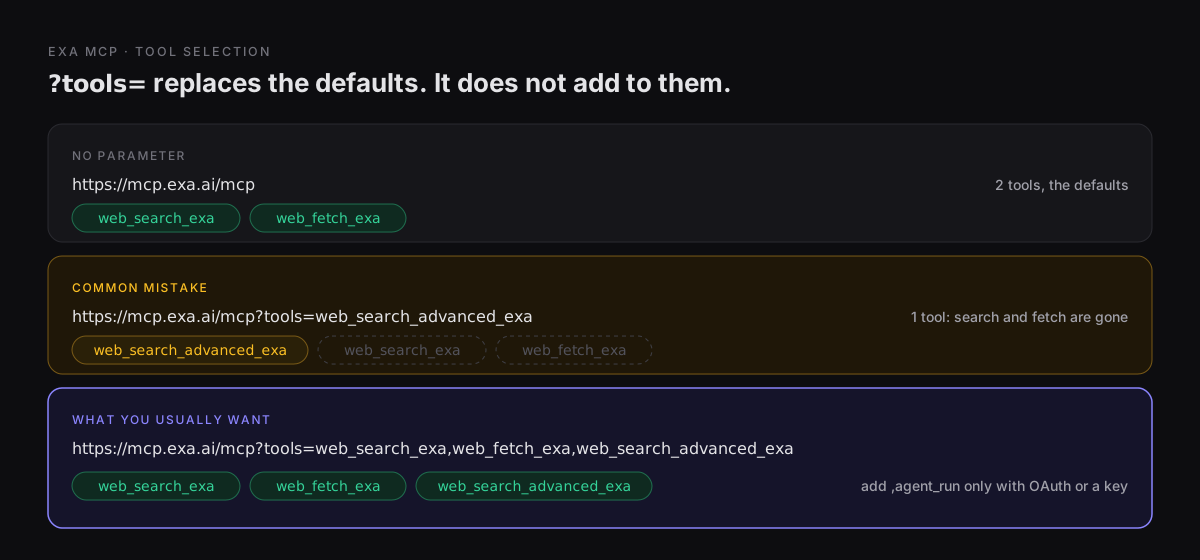
What you usually want:
https://mcp.exa.ai/mcp?tools=web_search_exa,web_fetch_exa,web_search_advanced_exaWith OAuth, combine both parameters and add the agent:
https://mcp.exa.ai/mcp?login&tools=web_search_exa,web_fetch_exa,web_search_advanced_exa,agent_runTwo things to watch:
agent_runwithout credentials fails the whole connection. Including it in?tools=on a keyless connection doesn't just hide the tool. The server rejectsinitializewith401 "Authentication required. Use OAuth or provide an API key."plus aWWW-Authenticateheader that points to/.well-known/oauth-protected-resource/mcp. Clients that support OAuth use that header to start sign-in. Clients that don't just show the server as failed.- Restart after changing the URL. Most clients cache the tool list per session. If a new tool doesn't appear, start a fresh session or reconnect from the client's MCP panel.
Is the advanced tool worth it? Yes, for coding agents. includeDomains restricted to official docs, startPublishedDate set to the last release, and maxAgeHours for fresh content are the controls that stop an agent from citing a 2023 blog post about an API that has since changed. The trade-off is a larger tool schema (28 parameters) in every request's context, so leave it off in clients where you only ask casual questions.
Step 5: Get good results from the agent#
The server works. Whether the model uses it well depends on two things: how it phrases queries, and how much text it pulls back.
Describe the page, not keywords. The tool's own description tells the model to write something like "blog post comparing React and Vue performance" rather than "React vs Vue". Models mostly follow this. If yours writes keyword soup, put the same instruction in your CLAUDE.md, AGENTS.md or system prompt. The objective argument is required, and it is where the model says which pages should rank first and which facts to extract. Adding category:company or category:people to the query searches company pages and LinkedIn profiles.
Search wide, fetch narrow. Search returns highlights, not full pages. That is deliberate, and it is the main reason this server is cheap on context.
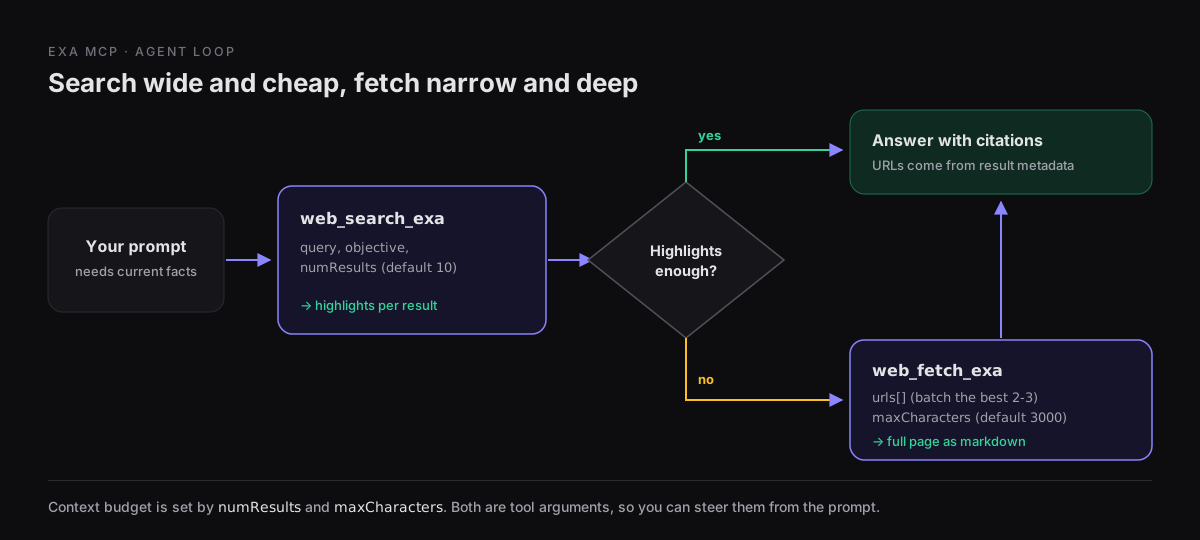
A well-behaved run looks like this in the tool log:
{ "name": "web_search_exa",
  "arguments": { "query": "official changelog for Next.js 16 caching APIs",
                 "objective": "Release notes and docs from nextjs.org first; list breaking changes",
                 "numResults": 5 } }

{ "name": "web_fetch_exa",
  "arguments": { "urls": ["https://nextjs.org/blog/...", "https://nextjs.org/docs/..."],
                 "maxCharacters": 8000 } }
Context use is controlled by two numbers. numResults defaults to 10, and five is usually enough for a focused question. maxCharacters defaults to 3000 per page, which cuts off long API references, so ask for 8000 to 15000 when you need the whole page. You can steer both in plain language ("fetch the full changelog page") because they are ordinary tool arguments.
Prompts that use the tools well:
- "Search for the current rate limits in the Stripe API docs, fetch the page, and quote the exact numbers with the URL."
- "Using advanced search restricted to
github.comand published after 2026-06-01, find open-source MCP servers for Postgres. Compare their auth options." - "Run an Exa agent task: build a table of the 10 most-starred Rust web frameworks with license and latest release date." (needs
agent_run)
Step 6: Verify it in your client#
Check that the client is connected before you blame the model for not using the tools:
| Client | Check |
|---|---|
| Claude Code | claude mcp list should show exa as connected. Inside a session, /mcp shows status and tools |
| Codex | codex mcp list; in the TUI, /mcp |
| Cursor | Cursor Settings, MCP section: exa is enabled and lists its tools |
| VS Code | Run MCP: List Servers from the Command Palette |
Then ask something the model can't know from training data, such as "What is the latest stable release of Bun? Search the web and cite the source." You should see a web_search_exa call, and the answer should cite the URL.
Troubleshooting#
| Symptom | Cause | Fix |
|---|---|---|
429 Too Many Requests | You hit the free keyless limit | Sign in with ?login or add an API key, then reconnect |
Server fails with 401 Authentication required | agent_run is in ?tools= but you sent no credentials | Remove agent_run, or authenticate |
web_search_exa missing after adding ?tools= | An explicit list replaces the defaults | List every tool you want |
| New tools don't appear | The client cached the old tool list | Restart the session or reconnect the server |
| Config ignored or JSON parse error | Trailing comma (the README sample has one), or the wrong URL key for the client | Validate the JSON; use serverUrl for Windsurf and httpUrl for Gemini CLI |
406 Not Acceptable: Client must accept both application/json and text/event-stream | A hand-rolled client or curl sent only one content type | Send Accept: application/json, text/event-stream |
| OAuth window never opens | The client doesn't support MCP OAuth | Use an x-api-key header instead |
| Answers cite outdated pages | Default search has no date or domain filters | Enable web_search_advanced_exa and ask for startPublishedDate or includeDomains |
Security and cost notes#
- Treat results as untrusted input.
openWorldHint: truemeans the tool returns content written by strangers, and a page can contain text aimed at your agent. The Exa tools themselves are read-only, so the risk is in what else your agent can do in the same session. Don't let an agent that just read the open web push tomainor send email without review. Our MCP security checklist covers this pattern. - Queries leave your machine. Search queries and fetched URLs go to Exa. If an agent is working in a private codebase, it can put internal names in a query. Decide whether that is acceptable before you enable the server for a team.
- Keyless is free,
agent_runis not. Search and fetch run under the free limits, or your plan's limits when authenticated.agent_runalways bills to the authenticated team and reports usage in its result. Long runs returnstatus: "running"with anid, which you pass back asrunIdto resume. - Scope configs deliberately. A user-scoped server shows up in every repo. If only one project needs web search, use project scope and commit a
.mcp.jsonthat reads the key from the environment.
FAQ#
Is the Exa MCP server free?#
Yes, to start. The hosted endpoint works without an account under free rate limits, and new Exa accounts get free credits. Higher limits and agent_run are billed to your Exa team through OAuth or an API key.
Do I need an Exa API key?#
No. Keyless mode needs nothing. Use OAuth for interactive clients, and an API key for CI, the OpenAI API or clients without MCP OAuth support.
What's the difference between web_search_exa and web_search_advanced_exa?#
web_search_exa takes a natural-language query and an objective and returns highlights, which covers most questions. web_search_advanced_exa adds about two dozen controls: domain include and exclude lists, published and crawl date ranges, text filters, categories, summaries, highlight tuning and subpage crawling. It is off by default to keep the tool schema small.
Can I run the Exa MCP server locally?#
Yes. Run npx -y exa-mcp-server with EXA_API_KEY set, as a stdio server. The source is MIT-licensed. For most teams the hosted endpoint is simpler because there is nothing to update.
How does Exa MCP compare to other search MCP servers?#
Exa returns highlights and clean page text and supports semantic queries, which suits agents that research before they write code. If you mostly need library documentation, Context7 is more targeted. For crawling whole sites or scraping structured data, look at Firecrawl. Tavily is the closest general-purpose alternative. Our MCP directory lists the rest.